How to Fix Netflix Buffering for Smooth Streaming
- Satyam Singh
- Apr 26
- 4 min read

Buffering during your favourite Netflix show can be frustrating. It interrupts the flow and spoils the experience. I’ve faced this issue many times, and I want to share simple, clear steps to fix Netflix buffering. These tips work well for everyday users in India who want quick solutions without technical jargon.
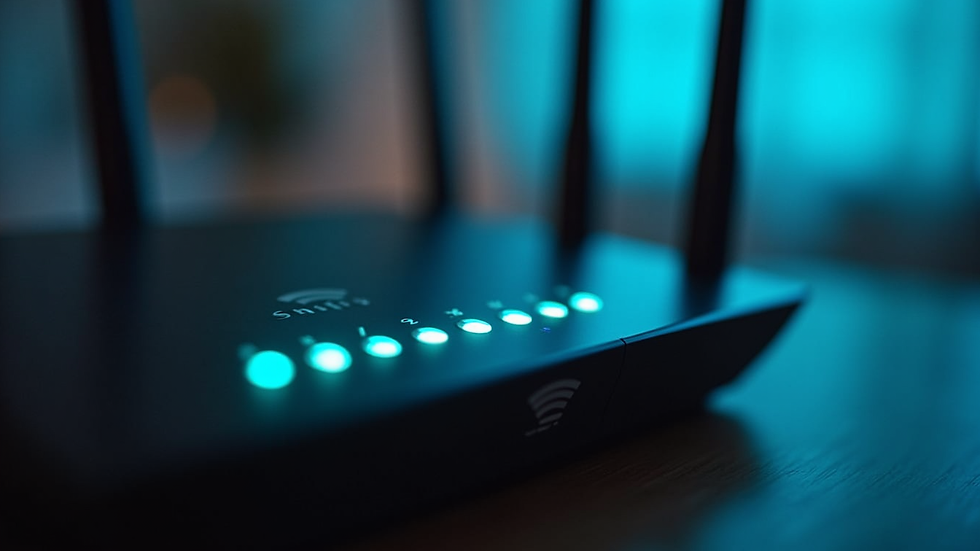
Close-up of a Wi-Fi router showing active connection lights
Why Does Netflix Buffering Happen?
Netflix buffering happens when the video pauses to load more data. This usually means your internet speed is too slow or unstable to keep up with the video quality. Other reasons include device issues, app glitches, or network congestion.
Buffering can happen even if your internet seems fine for browsing or social media. Streaming video needs a steady, fast connection. If the connection drops or slows, Netflix pauses to catch up.
Understanding this helps us focus on the right fixes. Let’s look at easy ways to stop buffering and enjoy Netflix without interruptions.
Check Your Internet Speed and Connection
The first step is to check your internet speed. Netflix recommends at least 3 Mbps for SD quality, 5 Mbps for HD, and 25 Mbps for Ultra HD. You can test your speed for free on sites like Speedtest.net.
If your speed is below these numbers, buffering is likely. Here’s what you can do:
Restart your router to refresh the connection.
Move closer to your Wi-Fi router for a stronger signal.
Use a wired Ethernet connection if possible for more stable speed.
If your internet speed is good but buffering continues, the problem might be elsewhere.
Reduce Video Quality to Match Your Speed
Netflix automatically adjusts video quality based on your connection. But you can manually lower the quality to reduce buffering.
To change video quality on Netflix:
Go to your Netflix account settings on a browser.
Select “Playback settings.”
Choose “Data usage per screen” and select “Low” or “Medium.”
Lower quality means less data to load, so buffering reduces. This is useful if your internet speed fluctuates or is limited.
Close Other Apps and Devices Using the Internet
Multiple devices or apps using the same internet can slow down your Netflix streaming. For example, if someone is downloading large files or playing online games, your Netflix may buffer.
Try these tips:
Pause downloads or updates on other devices.
Disconnect devices not in use from Wi-Fi.
Close apps running in the background on your streaming device.
This frees up bandwidth for Netflix and helps reduce buffering.
Update Your Netflix App and Device Software
Outdated apps or device software can cause streaming issues. Make sure your Netflix app is updated to the latest version.
On smartphones or smart TVs:
Go to the app store.
Check for Netflix updates.
Install any available updates.
Also, update your device’s operating system. This can fix bugs that cause buffering.
Clear Netflix App Cache and Data
Sometimes, the Netflix app stores corrupted data that slows streaming. Clearing the cache can help.
On Android devices:
Go to Settings > Apps > Netflix.
Tap “Storage” and then “Clear Cache.”
On iOS, you may need to uninstall and reinstall the app to clear cache.
This refreshes the app and can fix buffering problems.

Eye-level view of a person adjusting a smart TV remote control
Restart Your Streaming Device
Restarting your device can clear temporary glitches causing buffering. Turn off your smart TV, phone, or streaming stick. Wait 30 seconds, then turn it back on.
This simple step often fixes many streaming issues.
Use a VPN Service with Fast Servers if Needed
Sometimes, buffering happens due to network congestion or regional restrictions. Using a VPN with fast servers can help improve streaming speed.
For example, services like ExpressVPN offer reliable, fast connections that can reduce buffering. They have servers close to India, which helps maintain good speed.
Make sure to choose a VPN known for speed and streaming support.
Consider Upgrading Your Internet Plan or Router
If buffering is frequent and your internet speed is low, upgrading your plan might be necessary. Many Indian ISPs offer affordable plans with higher speeds suitable for streaming.
Also, an old or low-quality router can limit your Wi-Fi speed. Upgrading to a modern router with better range and speed can improve your Netflix experience.
For example, routers like the TP-Link Archer AX50 provide strong Wi-Fi signals and support multiple devices without slowing down.
Use Netflix’s Download Feature for Offline Viewing
If your internet is unstable, try downloading shows or movies on Netflix before watching. This way, you can watch without buffering.
Netflix allows downloads on mobile devices and some smart TVs. Just tap the download icon next to the title and watch offline later.
This is a great option for travel or areas with poor internet.

High angle view of a smartphone screen showing Netflix download progress
When to Contact Your Internet Service Provider
If you have tried all the above and Netflix still buffers, the problem might be with your ISP. Sometimes, network issues or throttling affect streaming.
Contact your ISP and explain the problem. Ask if there are outages or speed issues in your area. They may offer solutions or upgrades.
Summary
Netflix buffering happens when your internet speed or device can’t keep up with streaming. To fix it, check your internet speed, reduce video quality, close other apps, update your Netflix app, clear cache, restart devices, and consider VPN or hardware upgrades.
Using a VPN like ExpressVPN or upgrading your router can make a big difference. Also, downloading shows for offline viewing helps when your connection is weak.
Try these steps one by one. You’ll soon enjoy smooth Netflix streaming without interruptions.
If you want more easy tech fixes, keep exploring guides that simplify troubleshooting for everyday users like you. Happy streaming!



Comments